

-
muhammadamjadbutt00@gmail.com
- January 22, 2026
- 0 Comments
- Uncategorized
In 2026 a large amount of the world’s data is in Excel spreadsheets as businesses everywhere from finance to healthcare use it to help run their daily operations. This guide will teach you important Excel formulas from simple to advanced, helping you work faster and analyze data better in your spreadsheets.
Technical Overview of Excel Formulas
Microsoft Excel is a tool for organizing and analyzing information which we use to create reports and store business records and we need Excel formulas to do basic math or study the data.
An Excel formula does math or changes data in a spreadsheet and it always starts with an equal sign (=) so Excel knows how to calculate it. Formulas include mathematical operations, cell references, functions and operators.
7 Basic Excel Formulas Everyone Should Know with Example
Below are the 7 important Excel formulas starting with common and useful functions
SUM
The basic SUM function lets you quickly add a group of numbers together instead of adding each one by hand.
Formula
=SUM(number1, [number2], …)
Example
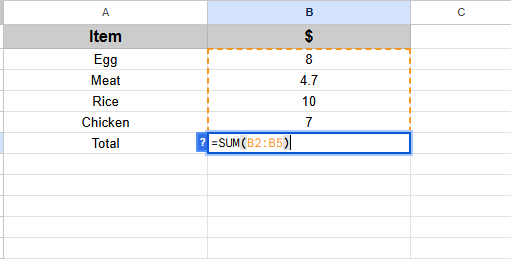
For example we want to calculate the Sum of items in a store.
Average
The Average formula is used to calculate the average of the group of cells or individual cells. It works the same as sum.
Formula
=AVERAGE(number1, [number2], …)
Example
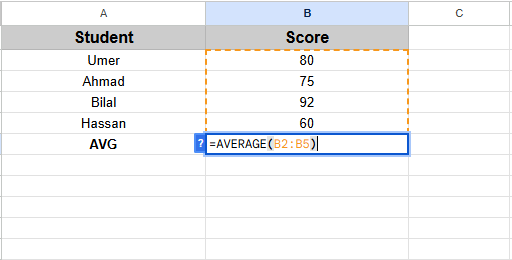
For example we want to calculate the average score of 6 students in a class.
Trim
The Trim function is used to remove the extra and unwanted space between the text and make it clean and leaves the same space between the words.
Formula
=TRIM(Text)
Example
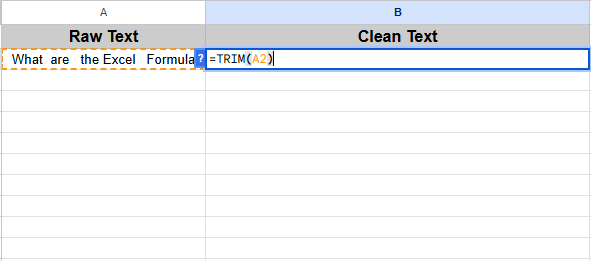
For example we got the text from somewhere which contains random spaces in A2 now we want the clean text in B2.
UPPER and LOWER
This function is used to make the letters in uppercase, lowercase even if they were written in random capital letters or proper.
Function
=UPPER(text)
=PROPER(text)
Example
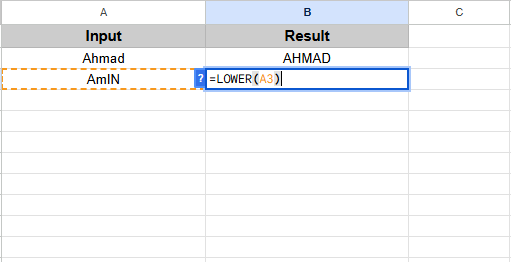
For example in the A3 random letter we want to write them in lower letters in C3.
PROPER
The function is also used to write the text in the proper lettering such as the first letter of any word in Capital. It is related to the UPPER, LOWER function.
Function
=PROPER(text)
Example
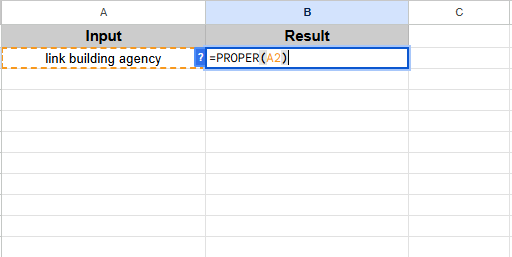
For example the text in A2 is written in lowercase and we want to write them in a proper way in B2.
TODAY and NOW
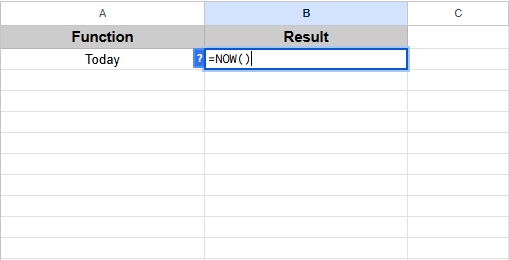
TODAY and NOW functions are used for the date and time. NOW function is used for the date and time while the TODAY function is used for the only date today.
Function
=TODAY()
=TODAY()
Example
For example if you are managing a function and want to insert the current date and time then you can use this function.
LEFT(), RIGHT() and MID()
The function is used to extract the specific text from any column or cell and get that specific text.
Function
=LEFT()
=RIGHT()
=MID()
For example
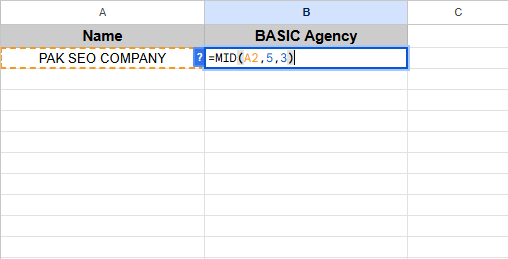
For example you want a specific word from the column A2 as you can see in the example =MID(A2,5,3) SEO word is to start at 5 and have 3 words.
Conclusion
Lastly, you can use the above special function of the excel sheet to make your daily tasks simple and easy. These are the simple formulas that everyone should know and they will be really helpful even if you are from any kind of industry as at this time every sector is relying on Excel for their data and reports etc.